|
|
| |
 |
 |
|
 |
| |
Point Studies
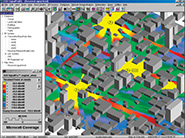
The point study mode displays the ray trajectories to a particular point in the propagation environment. This allows you to you can view the effect on the ray amplitude and phase for each wall refl ection and corner diffraction.
RMS Delay Spread
You can calculate time dispersion/multipath studies (RMS delay spread studies), angle of arrival, and angle of departure.
Multi-Story Studies
Calculate attenuation between multiple fl oors/ceilings.
|
Time Signature Displays
Time signature displays are available to show the waveform of the received data pulse as a function of time. Pulse shape distortions and echoes due to multipath are easily visible. Pseudo-animation mode shows the dynamic nature of pulse distortions.
Spectrum Signature Displays
Spectrum signature displays use the FFT of the time signature to display frequency-selective fading channel characteristics. Pseudo-animation mode shows the dynamic nature of the frequency-selective spectrum response.
|
| |
 |
EDX .mcs Files
EDX has developed a robust and effi cient fi le format for outdoor building databases and indoor fl oor plans – the .mcs format. The .mcs fi les produced by the Building Editor can be used with the EDX wireless planning tools. The detailed parameters stored in the .mcs fi les, such as wall material, electrical characteristics, wall height and location, provide vital details that can greatly enhance the RF propagation prediction accuracy for microcell and indoor wireless systems.
Edit EDX .mcs Files
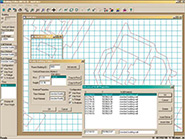
Building Editor makes it easy to manage indoor fl oor plans and outdoor building databases. With its familiar Windows graphical user interface, it gives you the convenience of mouse and toolbar functionality to create, import, and edit your building databases. You can easily modify wall height and material type, group walls together, and, with a single click, copy a fl oor plan to another fl oor. |
Customize Your Display
Choose from several different display types for viewing your map. Most views can be shown either seperately or simultaneously within distinct map windows.
Create & Display Databases from Scanned Images
You can also import raster images as background layers, then use the intuitive drawing tools to trace the elements you want to include in your building database, assigning wall height, wall material and electrical characteristics as you go.
Rotate & Scale Images
Make directional changes by rotating or using linear scaling on images. Re-scale images by selecting two points and dragging them to new locations on the map or by entering new coordinates for each.
|
| |
 Click here to find out more
|
|
|
|
|